Step #1: Open the Eclipse JPA project wizard
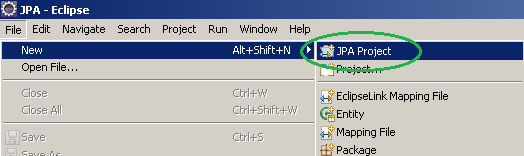
The first step is to open the Eclipse JPA project wizard. If it doesn't show up in the menu (as shown in the screenshot above), simply go to File -> New -> Other... and then under JPA there should be a "JPA Project" to select. If it isn't, you probably aren't using the correct version of Eclipse.
Step #2: Project name and runtime configuration

Give the project a name (I called mine "Dogs"). I did not select a target runtime because the application is supposed to be a desktop one. I also selected the Default Configuration.
Step #3: Source folders
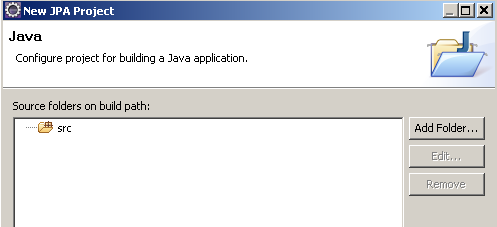
We're going to leave this with the default value.
Step #4: Platform, JPA implementation
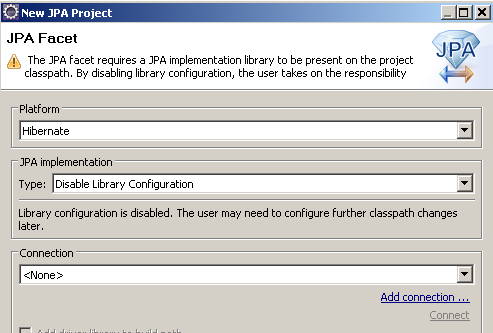
This part gave me a bit of a headache. As a long time Maven user I could not agree to referencing project libraries from my local disk ("C:\Michal\Development\Libs\...") - it would never work for anyone else and not even for me on a different computer. And that's exactly what the wizard suggests you do!
So just select the "Hibernate" platform and "Disable Library Configuration" for JPA implementation. Eclipse displays a neat warning as if it suspected we didn't know what we are doing.
Now it's time to set up the connection.
Step #5: Adding the connection
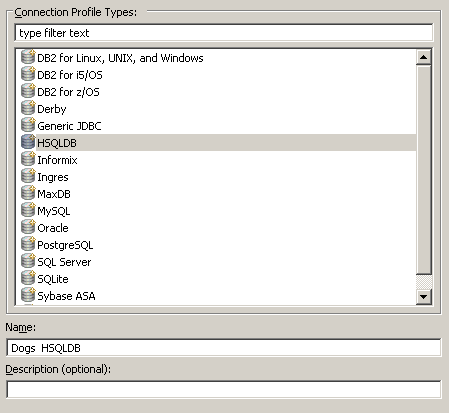
Click "Add connection...". Give it a name and click next.
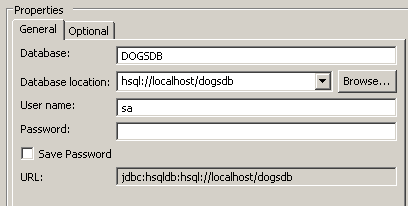
Fill in the data. We are using HSQLDB in the Server mode, so the DB location is hsql://localhost/dogsdb and it makes the URL become jdbc:hsqldb:hsql://localhost/dogsdb.
Note: HSQLDB in Server mode means that you need to explicitly start the server, it won't work if you just run the application (unlike the non-server file based and memory modes).
The server isn't up yet, so you will get an error when trying to connect:
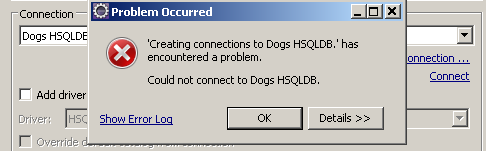
I would not check "Add driver library to build path".
Click "Finish".
Step #6: The HSQLDB
If the connection error annoyed you, no worries. We will take care of that. Create a folder called "lib" in your project and drop hsqldb-1.8.0.7.jar in there. You can get it from HSQLDB Download site (a newer version like 1.8.1.12 is fine, an older one should be OK too).
Now, let's add two batch files (or shell files; I am Windows based here at the moment) to the project root. Let's call them startDb.bat (startDb.sh for Unix based systems) and startManager.bat (startManager.sh). Here's the content.
startDb.bat
java -cp lib/hsqldb-1.8.0.7.jar
org.hsqldb.Server
-database.0
file:db\dogsdb -dbname.0 DOGSDB
[Line breaks added for readability] See how the database name corresponds with what you provided earlier?
If you run this, a folder called db will be created and database files put there. The java command must be in system PATH.
Note: You should run it from your system explorer (Windows Explorer, Finder etc.) and not from Eclipse. If you run it from Eclipse it is bound to fail because Eclipse runs it from its own root folder (where it is installed) and not from the project root.

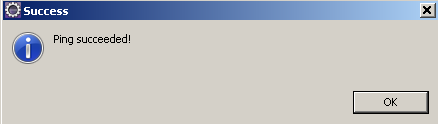
If you test the connection from Eclipse, it's going to be just fine.
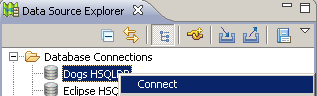
You should also connect now from the Eclipse Data Source Explorer.
startManager.bat
java -classpath lib/hsqldb-1.8.0.7.jar
org.hsqldb.util.DatabaseManagerSwing
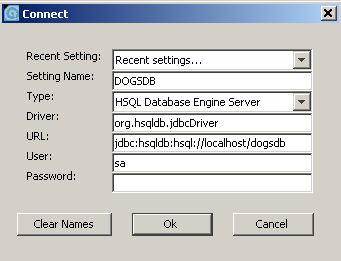
[Line breaks added for readability] Now, this is for the Database Manager from HSQLDB. If you run this, you should set connection parameters as follows and it will let you in.
Step #7: Project classpath
You must add some libs to the project - namely Hibernate libs with certain dependencies. You can get them from the official distribution. Just drop them in the lib folder where hsqldb already is. Select them all (except for hsqldb) and right click them. Then Build path -> Add to build path.
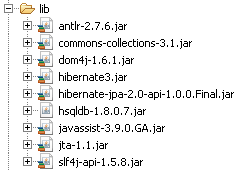
You need the following jar files in the classpath:
- antlr-2.7.6.jar
- commons-collections-3.1.jar
- dom4j-1.6.1.jar
- hibernate3.jar
- hibernate-jpa-2.0-api-1.0.0.Final.jar
- javassist-3.9.0.jar
- jta-1.1.jar
- slf4j-api-1.5.8.jar
Now, you might get the following warning:
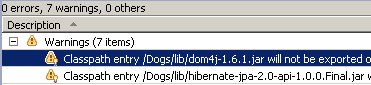
Classpath entry /Dogs/lib/dom4j-1.6.1.jar
will not be exported or published.
Runtime ClassNotFoundExceptions may result
[Line breaks added for readability]
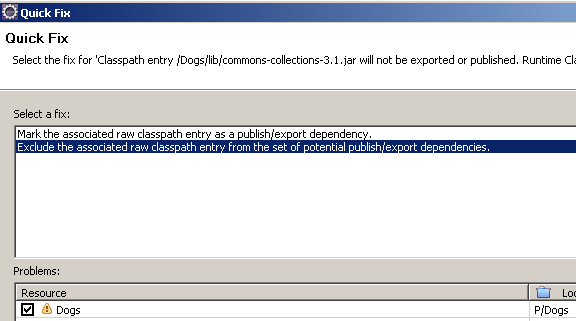
The only thing I could do about it was to click each of those issues (one per jar in classpath) and go for the quick fix (right click it and select "Quick Fix"; or select it and hit Ctrl+1). Then I would select "Exclude the associated raw classpath entry from the set of potential publish/export dependencies." Selecting the other option ("Mark the associated raw classpath entry as a publish/export dependency") would give me another warning that I couldn't fix.
If you plan to export your application with the Eclipse Export tool you might want to add hsqldb-1.8.0.7.jar to the build path too and it will not be exported.
Summary
In this tutorial we created a simple Eclipse JPA project thanks to which we can benefit from Eclipse JPA support. What is important, the project itself has all the dependencies it needs, so they are not referenced from an external location. In the next part we will create some simple JPA code.
Download source code for this article


Hello, Im looking forward the next part.
ReplyDeleteIm interested in what is the main goal of an JPA project.
Really cool blogentry ... I had one problem however folowing your guide, when attempting to "ping", the connection was failing because eclipse could not find the hsqldb.jar.
ReplyDeleteAdding it to the list of jars in the connection definition solved the problem - but this was exactly what you argued against ?
Agata
@cscsaba242
ReplyDeleteI don't really like Eclipse's JPA support so I wouldn't recommend using it. Maybe the support will be better in future - for now I'm not planning writing more on it.
@themathmagician
I think you're fine this way. I'd just test if you can export your app and whether it still works (as opposed to falling over on classes not found).
Hello, how I can use the HSQLDB as configuration database, for a simple java SE project in netbeans. Thanks.
ReplyDeleteThis is such a good post. One of the best posts that I\'ve read in my whole life. I am so happy that you chose this day to give me this. Please, continue to give me such valuable posts. Cheers!
ReplyDeleteData Science Training in Chennai
Data Science course in anna nagar
Data Science course in chennai
Data science course in Bangalore
Data Science course in marathahalli
Data science course in bangalore
So this is what happens when a writer does the homework needed to write quality material. Thank you very much for sharing this wonderful content.
ReplyDeleteSEO Services in Kolkata
Best SEO Services in Kolkata
SEO Company in Kolkata
Best SEO Company in Kolkata
Top SEO Company in Kolkata
Top SEO Services in Kolkata
SEO Services in India
SEO Company in India
So this is what happens when a writer does the homework needed to write quality material. Thank you very much for sharing this wonderful content.
ReplyDeleteSAP training in Kolkata
Best SAP training in Kolkata
SAP training institute in Kolkata
ReplyDeleteEasily, the article is actually the best topic on this registry related issue. I fit in with your conclusions and will eagerly look forward to your next updates.
data science courses
I’m excited to uncover this page. I need to to thank you for ones time for this particularly fantastic read!! I definitely really liked every part of it and i also have you saved to fav to look at new information in your site.
ReplyDeleteBest Data Science Courses in Hyderabad
All things considered I read it yesterday however I had a few considerations about it and today I needed to peruse it again on the grounds that it is very elegantly composed.
ReplyDeletedata scientist course
Extremely overall quite fascinating post. I was searching for this sort of data and delighted in perusing this one. Continue posting. A debt of gratitude is in order for sharing.data science courses in Hyderabad
ReplyDeleteHello, I have browsed most of your posts. This post is probably where I got the most useful information for my research. Thanks for posting, we can see more on this. Are you aware of any other websites on this subject.
ReplyDeleteBest Data Science Courses in Hyderabad
Took me time to understand all of the comments, but I seriously enjoyed the write-up. It proved being really helpful to me and Im positive to all of the commenters right here! Its constantly nice when you can not only be informed, but also entertained! I am certain you had enjoyable writing this write-up.
ReplyDeletedata science training in Hyderabad
Excellent Blog!!! Waiting for your new blog... thanks for sharing with us.
ReplyDeleteandroid developer vs web developer salary
how to use selenium webdriver
which is the best language in the world
professional hacking
devops interview questions and answers pdf
rpa interview questions and answers for experienced
Mua vé tại Aivivu, tham khảo
ReplyDeletemua ve may bay di my
vé máy bay từ houston về việt nam
khi nào có chuyến bay từ anh về việt nam
máy bay từ pháp về việt nam
Truly incredible blog found to be very impressive due to which the learners who ever go through it will try to explore themselves with the content to develop the skills to an extreme level. Eventually, thanking the blogger to come up with such an phenomenal content. Hope you arrive with the similar content in future as well.
ReplyDeleteDigital Marketing Course
ReplyDeleteI was taking a gander at some of your posts on this site and I consider this site is truly informational! Keep setting up..
Data Science Training
Through this post, I realize that your great information in playing with all the pieces was useful. I inform that this is the primary spot where I discover issues I've been looking for. You have a cunning yet alluring method of composing. data scientist training and placement
ReplyDeleteInformative blog
ReplyDeletedata science training in Patna
ReplyDeleteI see the greatest contents on your blog and I extremely love reading them.
Best Institute for Data Science in Hyderabad
Thanks for posting the best information and the blog is very infData science course in Varanasi
ReplyDelete
ReplyDeletewow, great, I was wondering how to cure acne naturally. and found your site by google, learned a lot, now i’m a bit clear. I’ve bookmarked your site and also added. keep us updated.
Data Science Training
Impressive. Your story always bring hope and new energy. Keep up the good work.
ReplyDeletebusiness analytics course
Really wonderful blog completely enjoyed reading and learning to gain the vast knowledge. Eventually, this blog helps in developing certain skills which in turn helpful in implementing those skills. Thanking the blogger for delivering such a beautiful content and keep posting the contents in upcoming days.
ReplyDeletedata science in bangalore
Nice Blog. Thanks for sharing with us. Such amazing information.
ReplyDeleteOnly Blog
Guest Blogger
Guest Blogging Site
Guest Blogging Website
Guest Posting Site
This is an excellent post I saw thanks for sharing it. It is really what I wanted to see. I hope in the future you will continue to share such an excellent post.
ReplyDeletebusiness analytics course
I like viewing web sites which comprehend the price of delivering the excellent useful resource free of charge. I truly adored reading your posting. Thank you!
ReplyDeletebest data science institute in Hyderabad
Hi to everybody, here every one is sharing such knowledge, so it’s fastidious to see this site, and I used to visit this blog daily
ReplyDeletebusiness analytics course
This is a very nice one and gives in-depth information. I am really happy with the quality and presentation of the article. I’d really like to appreciate the efforts you get with writing this post. Thanks for sharing.
ReplyDeletePython classes in Ahmednagar
I wanted to leave a little comment to support you and wish you a good continuation. Wishing you the best of luck for all your blogging efforts.
ReplyDeleteBest Data Science courses in Hyderabad
Just the way I have expected. Your website really is interesting.
ReplyDeleteBest Data Science courses in Hyderabad
Nice post! This is a very nice blog that I will definitively come back to more times this year! Thanks for informative post.
ReplyDeletedigital marketing courses in hyderabad with placement
A good blog always comes-up with new and exciting information and while reading I have feel that this blog is really have all those quality that qualify a blog to be a one.
ReplyDeleteBest Data Science courses in Hyderabad
I will really appreciate the writer's choice for choosing this excellent article appropriate to my matter.Here is deep description about the article matter which helped me more.
ReplyDeletedata science course
I finally found great post here.I will get back here. I just added your blog to my bookmark sites. thanks.Quality posts is the crucial to invite the visitors to visit the web page, that's what this web page is providing.data science course
ReplyDeletedata scientist training in hyderabad
A good blog always comes-up with new and exciting information and while reading I have feel that this blog is really have all those quality that qualify a blog to be a one.
ReplyDeletedata science training in malaysia
Hi, I log on to your new stuff like every week. Your humoristic style is witty, keep it up
ReplyDeletedata scientist training and placement
I want you to thank for your time of this wonderful read!!! I definately enjoy every little bit of it and I have you bookmarked to check out new stuff of your blog a must read blog!
ReplyDeletedata scientist course in malaysia
This is really very nice post you shared, i like the post, thanks for sharing..
ReplyDeletedata science training
ReplyDeleteI am impressed by the information that you have on this blog. It shows how well you understand this subject. ethical hacking course fees in jaipur
It is late to find this act. At least one should be familiar with the fact that such events exist. I agree with your blog and will come back to inspect it further in the future, so keep your performance going.
ReplyDeleteBest Institute for Cloud Computing in Bangalore
Your content is nothing short of brilliant in many ways. I think this is engaging and eye-opening material. Thank you so much for caring about your content and your readers.
ReplyDeleteai training in hyderabad
Very good points you wrote here..Great stuff...I think you've made some truly interesting points.Keep up the good work.
ReplyDeletebest aws training in hyderabad
Really awesome blog, useful information. If you want to become a data scientist, here is the best option for you. For more information click the below link.
ReplyDeleteData Science Course in Hyderabad
Thanks for the informative and helpful post, obviously in your blog everything is good..
ReplyDeletecyber security course in malaysia
You finished certain solid focuses there. I did a pursuit regarding the matter and discovered almost all people will concur with your blog.
ReplyDelete360DigiTMG, the top-rated organisation among the most prestigious industries around the world, is an educational destination for those looking to pursue their dreams around the globe. The company is changing careers of many people through constant improvement, 360DigiTMG provides an outstanding learning experience and distinguishes itself from the pack. 360DigiTMG is a prominent global presence by offering world-class training. Its main office is in India and subsidiaries across Malaysia, USA, East Asia, Australia, Uk, Netherlands, and the Middle East.
ReplyDeleteGreat post I would like to thank you for the efforts you have made in writing this interesting and knowledgeable article.
ReplyDeletedata science training institute in hyderabad
This is a smart blog. I mean it. You have so much knowledge about this issue, and so much passion. You also know how to make people rally behind it, obviously from the responses. business analytics course in surat
ReplyDeleteIt will also let you know that is the data scientist's jobs are at risk with this automation. So let's get started.
ReplyDeleteGrab the top data science education online in the convenience of your own home. Flexible schedules, top-notch industry instructors, and painstakingly designed curriculum. Now available!data science course institute in nagpur
ReplyDeleteGreat post, thanks for sharing Spoken English Training In Pune
ReplyDeleteAn amazing web journal I visit this blog, it's unbelievably wonderful. Discover the gateway to success with Ziyyara Edutech's prestigious online English tuition in Qatar.
ReplyDeleteFor more info visit Online Tuition for english language in Qatar
Great article. While browsing the web I got stumbled through the blog and found more attractive. I am Software analyst with the content as I got all the stuff I was looking for. The way you have covered the stuff is great. Keep up doing a great job.
ReplyDeleteYou can also check : graphic design software , website design software .
This post effectively highlights the importance of data preprocessing in the data science workflow.data science course with placement in bangalore
ReplyDelete